
How to show timestamp location on photos
Settings to check when you want timestamp location and address on photos, including permission, address display, and template choices.
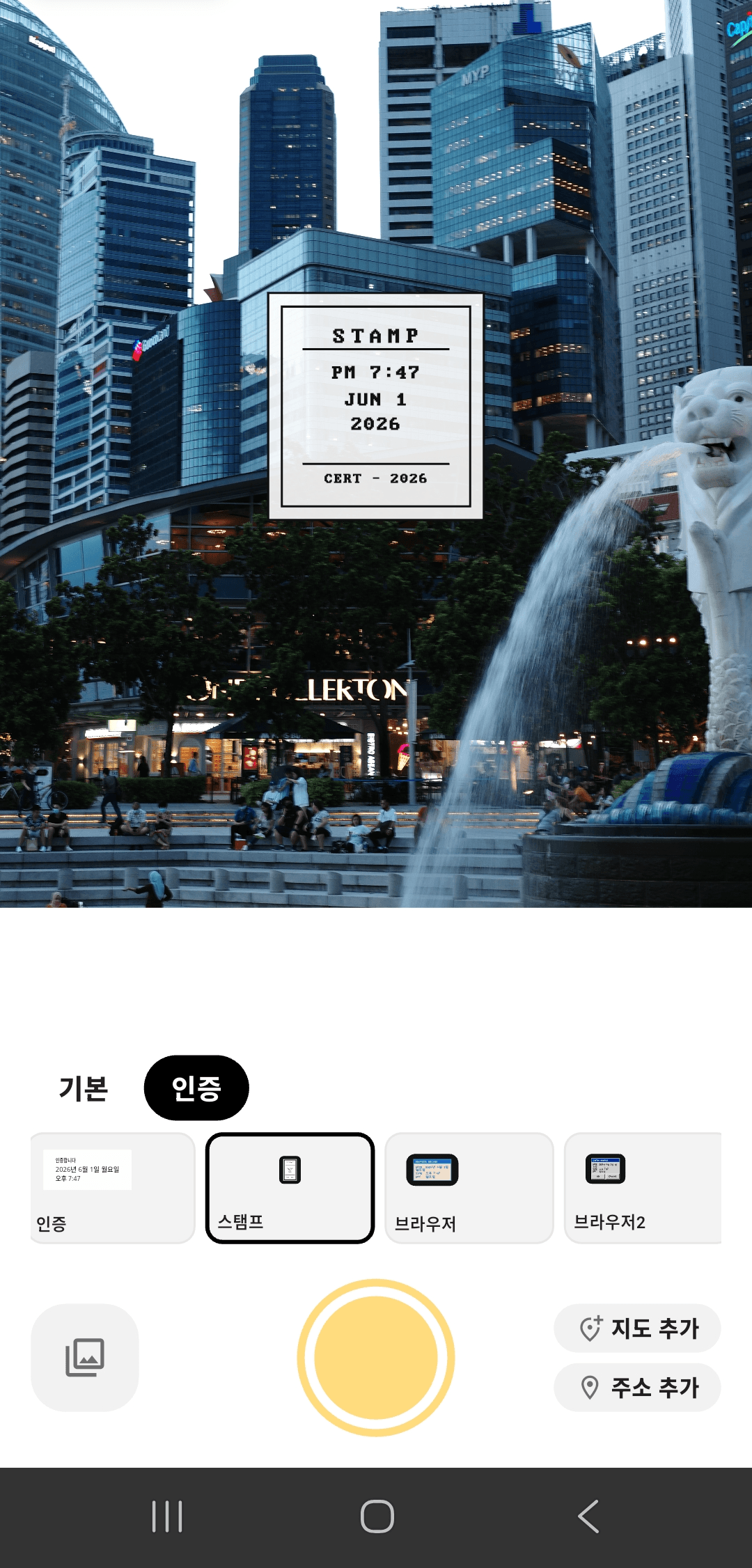
Three checks before shooting
Location stamps depend on Android permission, app settings, and a template that includes a location area.
Allow location permission
The app needs permission to read the current location before it can show an address.
Turn on address display
Enable address, location, or map options inside the app.
Choose a location template
Select a table, address, or proof template that has space for location information.
If location does not appear
Check that the phone's location setting is on, then confirm that DateCamera has location permission in Android settings.
If you are indoors, underground, or between tall buildings, wait a moment or move to a place with better signal before shooting again.
Choose the right display style
Full address display works well for site visit and worksite proof photos.
A table layout is easier to read when date, time, weekday, and address all need to be checked. A smaller stamp is better for daily or travel photos.
Quick checklist
Review these items when the address is missing.
- Phone location setting is on
- App location permission is allowed
- Address display option is enabled
- A template with a location area is selected
- GPS signal is available
Location timestamp questions
Show address clearly on proof photos.
Use DateCamera templates that include location and time together.