
How to use the timestamp app
A simple guide to installing DateCamera, allowing permissions, choosing a timestamp template, shooting, saving, and sharing photos.
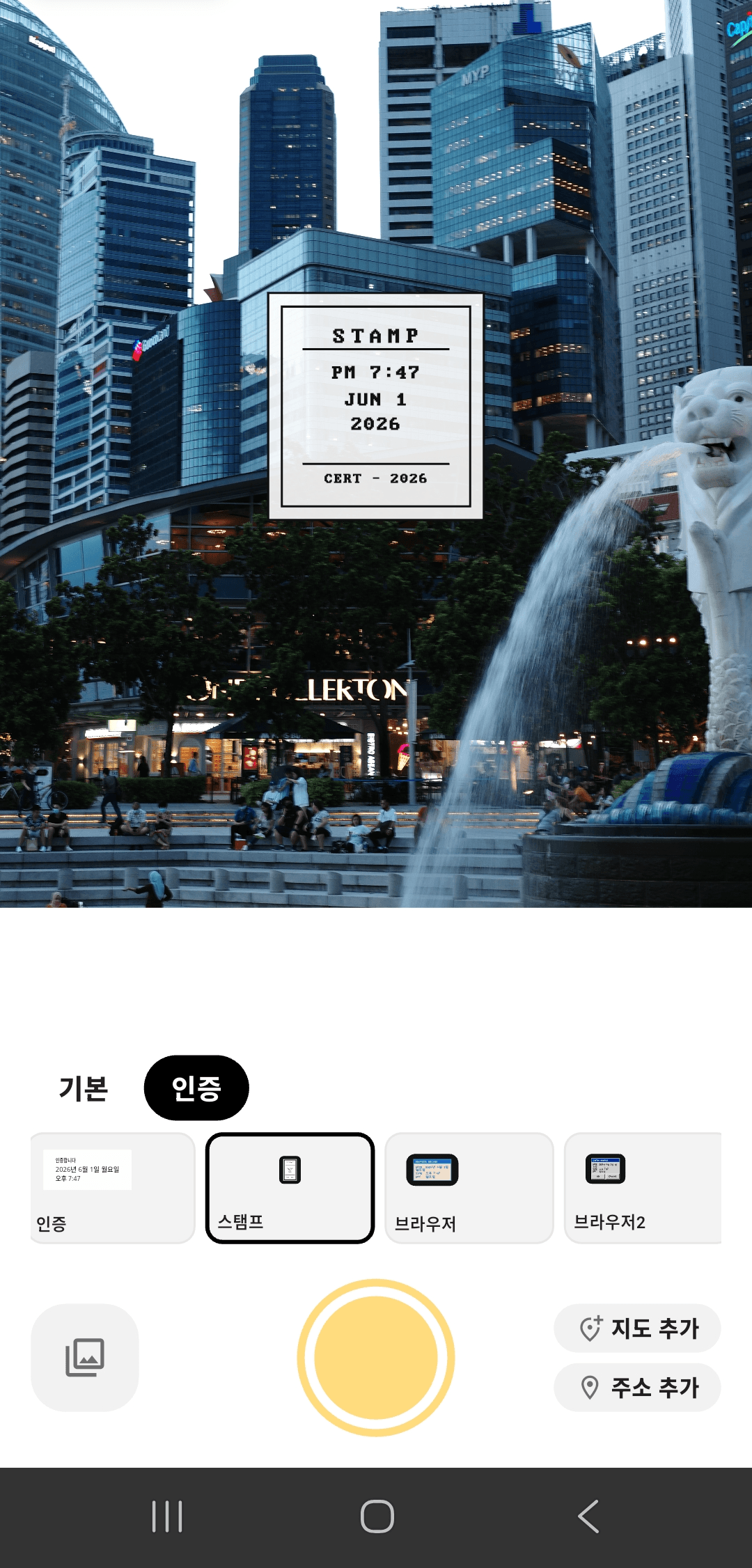
Basic setup flow
Install the app, allow the permissions you need, choose a template, then shoot and save.
Install
Open the Google Play listing and install DateCamera on Android.
Allow permissions
Camera permission is required for shooting. Location permission is needed for address features.
Choose a template
Pick a table, address, or stamp style before taking the photo.
Step-by-step
Follow this order when setting up DateCamera for the first time.
- Install the app from Google Play
- Allow camera permission
- Allow location permission if you want address or map stamps
- Choose the photo ratio and timestamp template
- Check address display if needed
- Take the photo, then save or share it
Template tips
Use a table template when several details need to be checked. Use an address template when place is important. Use a stamp template when you want a lighter look.
Before sharing photos
If a photo includes an address or location, review the visible information before sharing it outside your device.
Usage questions
Set up DateCamera in a few taps.
Start with a template and keep every photo record clear.